A few questions come up constantly when I'm advising NGO clients: how did the account get compromised, what's the impact, and what is this going to cost us. Small organizations don't have the cushion to absorb a breach. A compromised account can halt operations, force you into legal fees, or cost you funding relationships, depending on your contracts and regulatory obligations.
The data says this isn't paranoia. A three-year study out of Kean University's Center for Cybersecurity cataloged 463 cyber incidents against nonprofits worldwide, and data breaches were the single most common attack type, showing up in 303 of them. Education, local government, and humanitarian aid organizations topped the list of victims outside critical infrastructure. Microsoft's Digital Defense Report tells the same story from the attacker's side: nation-state groups treat NGOs and think tanks as soft targets, easier ways in than governments or defense contractors. In Europe they were the single most targeted sector. And fewer than 15 percent of NGOs have anyone on staff with cybersecurity expertise. Researchers have started calling the sector "cyber-poor but target-rich," and after years of advising these organizations, I can't argue with it.
Most of what I get called in for starts with email. That tracks with the research too, since roughly 90 percent of phishing attacks run on social engineering, and email is the delivery vehicle. Because Google offers a free nonprofit edition and steep discounts on paid tiers, a lot of NGOs run everything through Google Workspace. So this post starts there: the email threats you're most likely to face and the Workspace settings that address them.
The threats
Phishing and spear-phishing are the ones you've probably already seen. An attacker poses as something trusted, a bank, a delivery service, your IT support, and tries to get someone to hand over a password or payment details. Broad phishing goes out to thousands of inboxes and hopes. Spear-phishing is aimed at one person, often your executive director or whoever handles finances, and it arrives with enough real detail to be convincing.
Email spoofing is the quieter one. The attacker forges the "From" address so a message appears to come from someone you know, or from your own organization. This is how your donors end up receiving fake donation appeals that look like they came from you, and you may never find out it happened.
Business email compromise and ransomware delivered through attachments are real threats too, but they need different defenses, verification processes and backup strategy rather than mail settings. Those get their own posts.
Locking down inbound mail
These settings decide what happens to a suspicious message before anyone sees it.
Start with enhanced pre-delivery message scanning. Gmail already screens incoming mail, but this setting adds a deeper pass that catches messages the default filter lets through. It takes one toggle in the admin console, staff never notice it, and there's no tradeoff worth worrying about.
Then turn on the three safety protections: attachment scanning beyond the standard check, screening of links and external images, and spoofing protection that catches lookalike domains and messages impersonating people inside your own organization. All three are available on every Workspace tier, including the free nonprofit edition. This is protection you already own that's sitting switched off.
Last, resist the urge to loosen the spam filter. Don't bypass it for internal senders, don't approve whole domains without requiring authentication, and don't allowlist IP addresses when a mail gateway would do. Each of those shortcuts quietly reopens the door the settings above just closed.
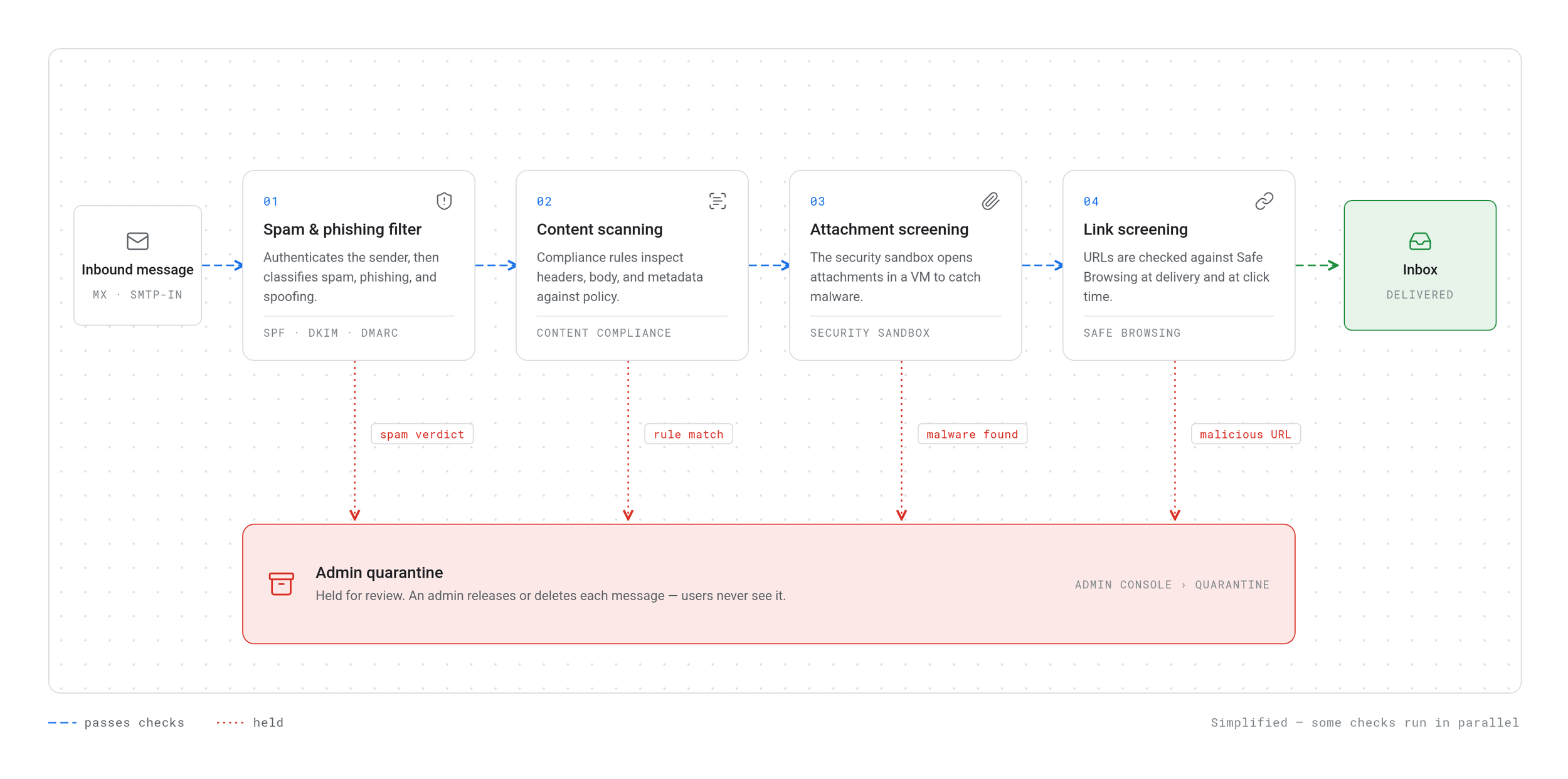
The path an incoming email takes in Google Workspace before it reaches an inbox. Each screening layer is a setting you can turn on, and every one of them is available on the free nonprofit plan.
Authenticating your outbound mail
Here's the section most organizations skip, and usually not by choice. SPF, DKIM, and DMARC are the three records that stop other people from sending mail as your domain, and they don't live in Google at all. They're DNS records, configured wherever your domain is hosted, which for many NGOs means Squarespace, GoDaddy, or whatever registrar sold them the domain years ago. If you've hunted through the Google Admin console for these and found nothing, that's why. I've seen them go unconfigured after a migration, or half-configured by someone who set up SPF and assumed the job was done.
What each one does: SPF declares which servers are allowed to send mail for your domain. DKIM puts a digital signature on outgoing mail so the receiving end can confirm nothing was altered. DMARC tells receiving servers what to do when a message fails those checks, whether to quarantine it, reject it, or let it through flagged. Together they're what stands between your domain and someone using it to scam your own donor list. All three are free on every tier because they're DNS, not license features.
While you're in this territory, set TLS enforcement for any partner domains you regularly exchange sensitive information with. It requires an encrypted connection for mail between you and them.
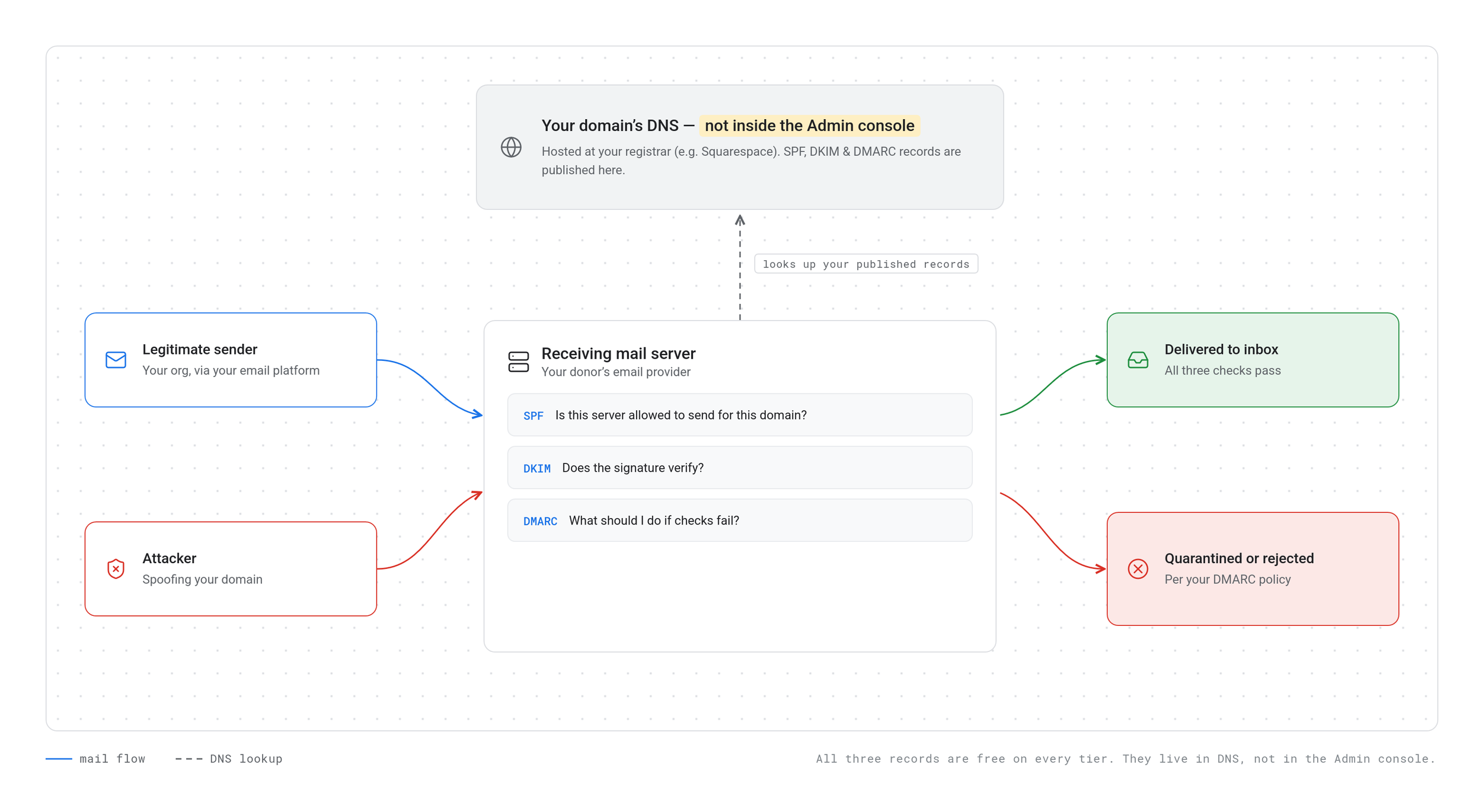
How a receiving mail server checks whether a message claiming to be from your domain is real. SPF, DKIM, and DMARC are DNS records configured at your domain host, not in the Google Admin console, and they're free on every Workspace tier.
When something already looks wrong
Email log search is the tool for after the fact. Someone reports a suspicious message, or a login looks off, and the log search lets you trace what was delivered, where, and when. It won't prevent anything. It's how you reconstruct what happened, which matters when a board member asks exactly that question.
Multi-factor authentication
If you only do one thing from this post, do this. Microsoft's study of real-world attack data found MFA reduces the risk of account compromise by 99.2 percent. It's free on every Workspace tier, and it's the control most NGOs still haven't enforced. When a password gets phished, and eventually one will, 2-Step Verification is what turns a stolen password from a breach into a failed login.
Not all second factors are equal, and the order matters more than most setup guides admit.
A hardware security key or a passkey is the strongest option. Both are phishing-resistant, meaning that even if someone is tricked into a fake login page, the key won't authenticate to a site it doesn't recognize. There's nothing to type and nothing to intercept.
A push notification through an authenticator app is the practical middle ground for most staff. It's tied to the physical phone, it's free, and Microsoft's research found dedicated authenticator apps outperform SMS. The one habit to teach alongside it: never approve a prompt you didn't trigger, since attackers count on people tapping yes reflexively.
SMS codes are the weakest of the lot. Text messages can be intercepted, and phone numbers can be hijacked through SIM-swap attacks where an attacker convinces a carrier to move your number to their device. SMS-based verification is still enormously better than a password alone, but if you're setting this up fresh, don't build on it: use an authenticator app as the floor, and put hardware keys or passkeys on admin accounts and anyone handling money.
The practical rollout: passkeys or keys for admins and finance, authenticator app for everyone else, SMS turned off once the alternatives are in place.
Enforce it for admin accounts first, since a compromised admin exposes everything, then roll it out to everyone with a short how-to and a firm date.
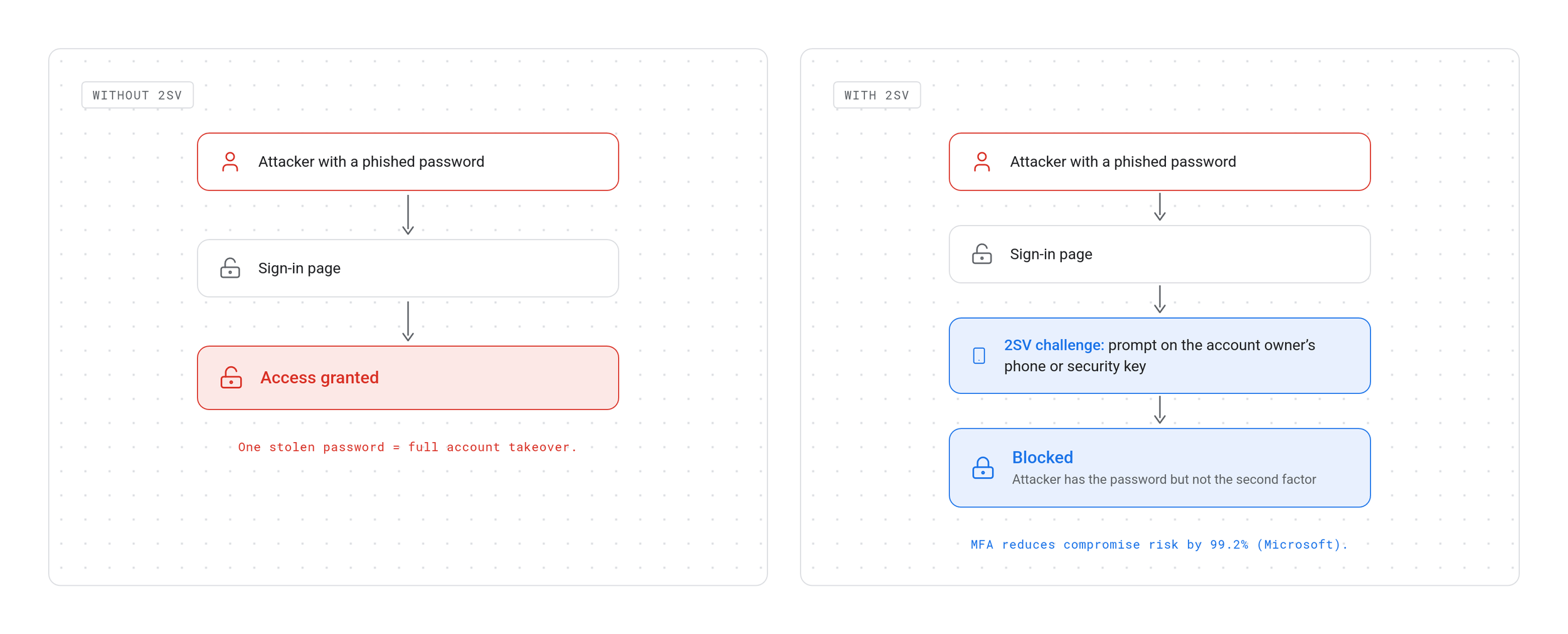
The same phished password, two outcomes. With 2-Step Verification enforced, a stolen password alone gets an attacker nothing. Microsoft's real-world attack data puts the risk reduction at 99.2 percent.
None of this is a silver bullet
Every setting above is one layer. Stacked together they close most of the common paths in, and the same Microsoft report estimates basic security hygiene defends against 99 percent of attacks. But no filter stops a well-crafted message from convincing someone to act, and no DNS record protects an account whose owner got talked out of their credentials.
When you're ready to go further: higher Workspace tiers add protections like deeper attachment sandboxing [link to license reference], dedicated email security tools add a second screening layer beyond what Google includes, and phishing awareness training addresses the part of the problem no setting reaches, the person reading the message.
Sources and further reading
Highlight: "Trends in Non-Profit Cybersecurity: Analyzing Three Years of Incident Data from the NPCIR (Mierzwa, Paliszkiewicz, and Skarzynska, 2026)"
Link: https://doi.org/10.3390/info17060601Highlight: "Microsoft Digital Defense Report 2023"
Link: https://www.microsoft.com/en-us/security/security-insider/threat-landscape/microsoft-digital-defense-report-2023Highlight: "How Effective Is Multifactor Authentication at Deterring Cyberattacks? (Microsoft Research)"
Link: https://www.microsoft.com/en-us/research/publication/how-effective-is-multifactor-authentication-at-deterring-cyberattacks/Highlight: "Advanced phishing and malware protection (Google Workspace Admin Help)"
Link: https://support.google.com/a/answer/9157861
